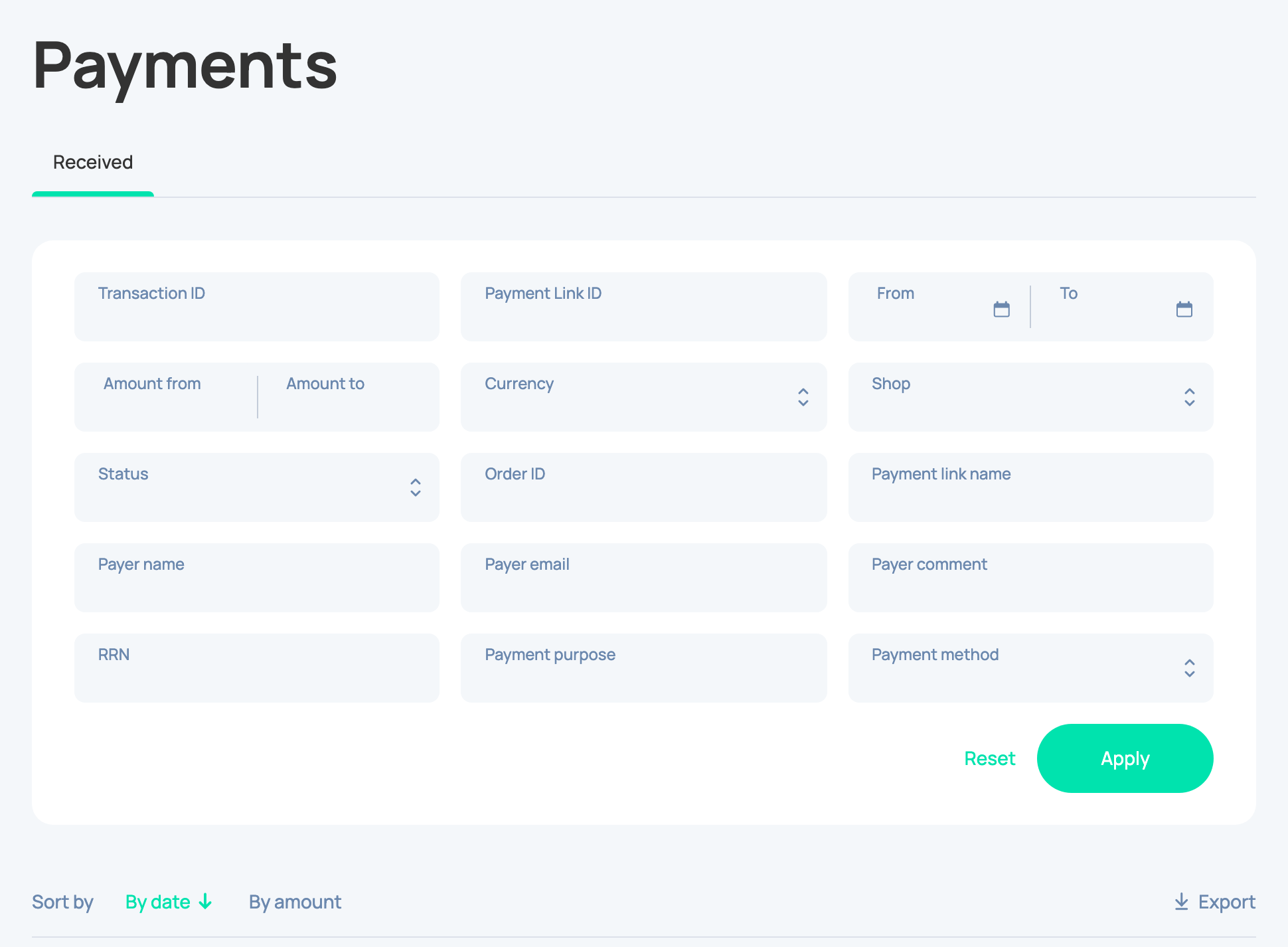
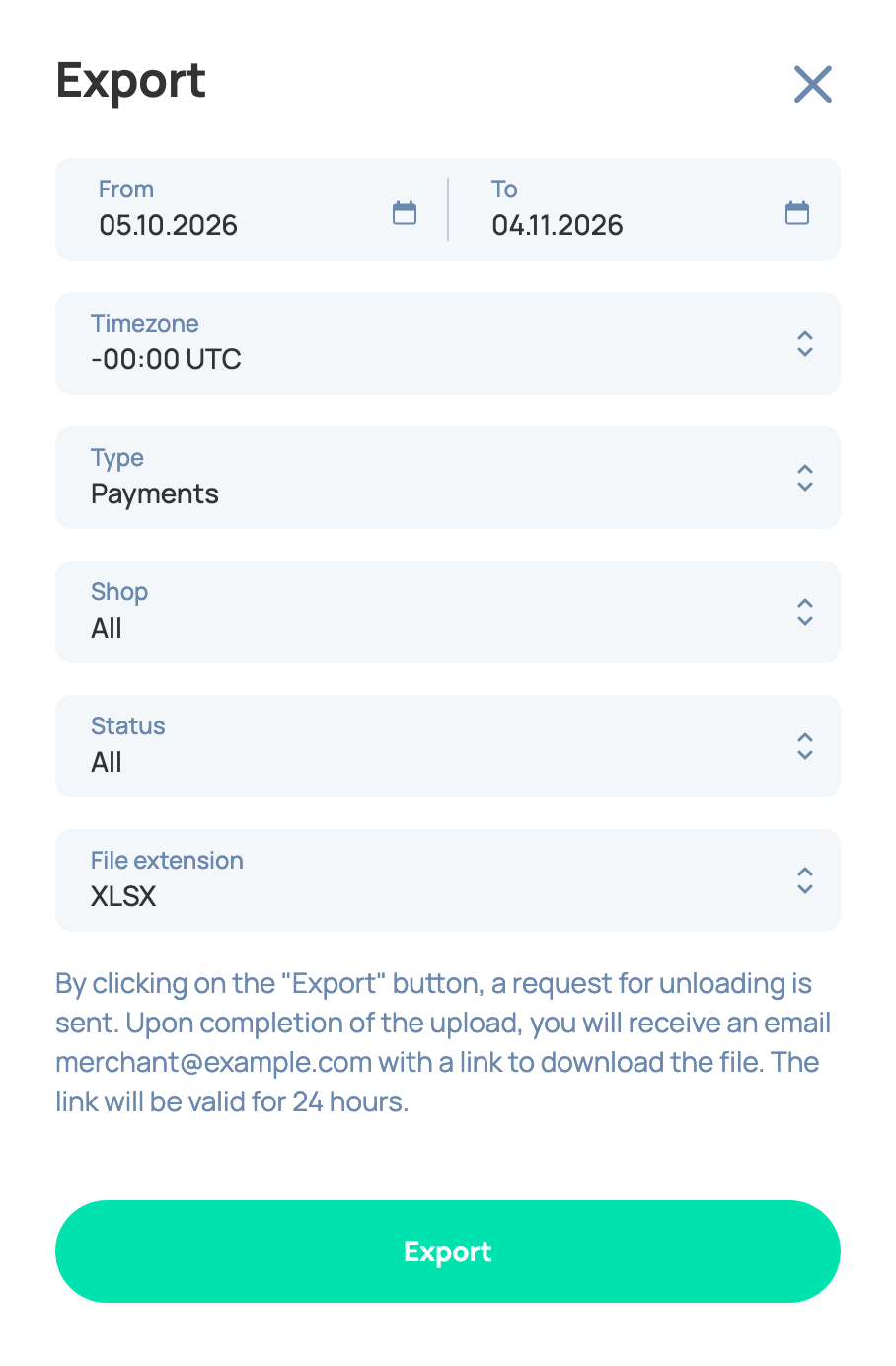
One export contains up to 1 000 000 rows. If there are more records, choose a shorter period.
You will receive the following data as columns in the document:
For Payments:
- Created At — date the payment was created.
- Updated At — date the payment was last updated.
- ID — the transaction ID. It is unique for transactions, but it can match some payment link IDs.
- Bill ID — the payment link ID. A link can have several transactions, so link IDs can repeat in the list.
- Bill Name — the text you entered in the «Payment for» field when you created the link.
- Bill Description — the link description.
- Order ID — order number from your CMS.
- Status — the status of the transaction.
- Error Code — error code if the payment failed.
- Error Message — error description.
- Payment Amount — the sum the payer paid.
- Payment Commission — the commission charged for this transaction.
- Payment Currency Code — the currency of the transaction.
- Balance Amount — the sum credited to your balance.
- Balance Currency Code — the currency of the funds credited to your balance.
- Refunded Amount — the refunded sum.
- Shop Name — the shop name, convenient if you have several shops.
- Account Type — payment method.
- Account Identifier — payer details, for example a card mask in the format of 111111******1111.
- Account Country — country of the payer's card.
- Account Bank — bank of the payer's card.
The payer fills the following fields himself before the payment. They are filled only if you enabled them when creating the payment link:
- Payer Name — payer's name.
- Payer Email — payer's email.
- Payer Phone — payer's phone.
- Payer Comment — payer's comment.
For Payouts:
- Payout Created At — date of payout.
- Payout Updated At — date the payout was last updated.
- ID — payout ID.
- Status — payout status.
- Error Code — error code if the payout failed.
- Error Message — error description.
- Payout Amount — the funds paid out.
- Payout Commission — the payout commission.
- Payout Currency Code — currency of the payout.
- Payout Description — payout purpose.
- Payout Comment — payout comment.
- Payout Order Id — order number.
- Balance Amount — the sum debited from your balance.
- Balance Commission — the commission debited from your balance.
- Balance Currency Code — balance currency.
- Account Type — recipient details type.
- Account Number — recipient details: card, account or wallet number.