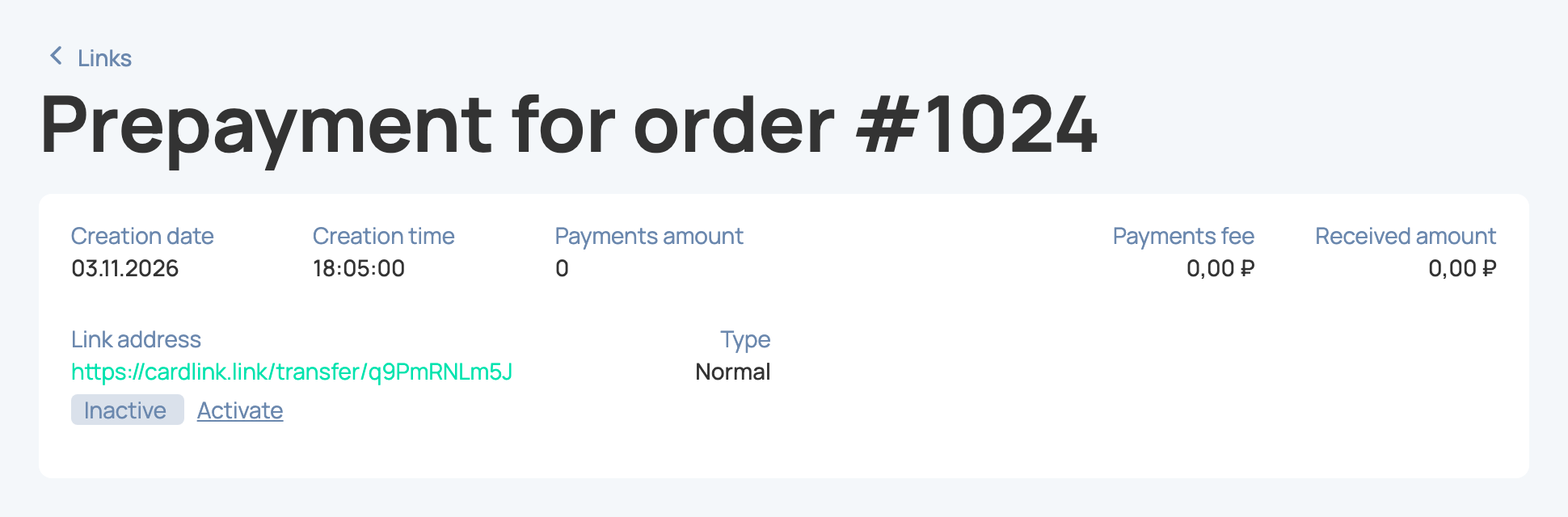
- Click the Create payment link button at the top of your account
- The sidebar where you can set your payment link parameters will appear
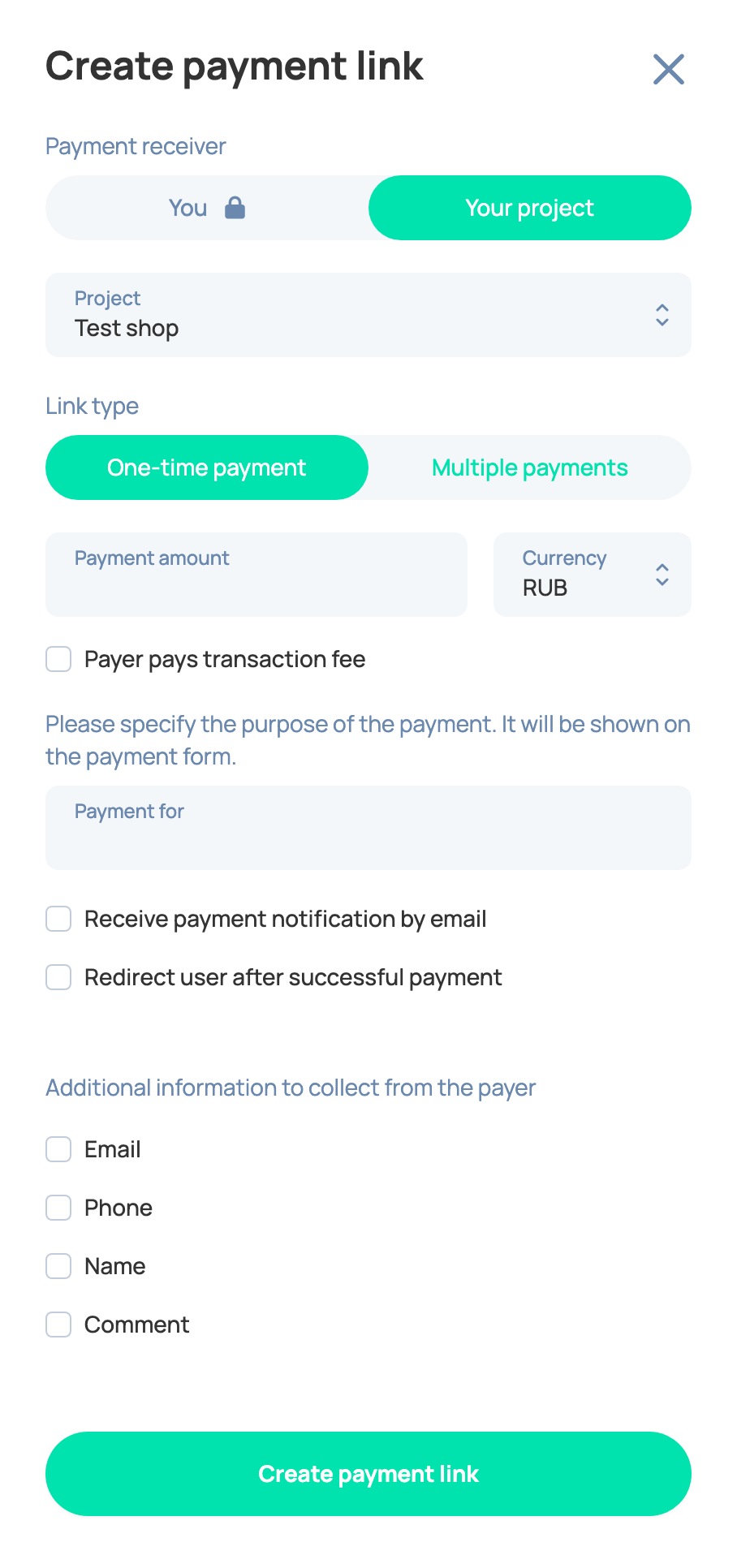
- In the Payment receiver block, choose Your project and select the shop that will receive the payment in the Project field.
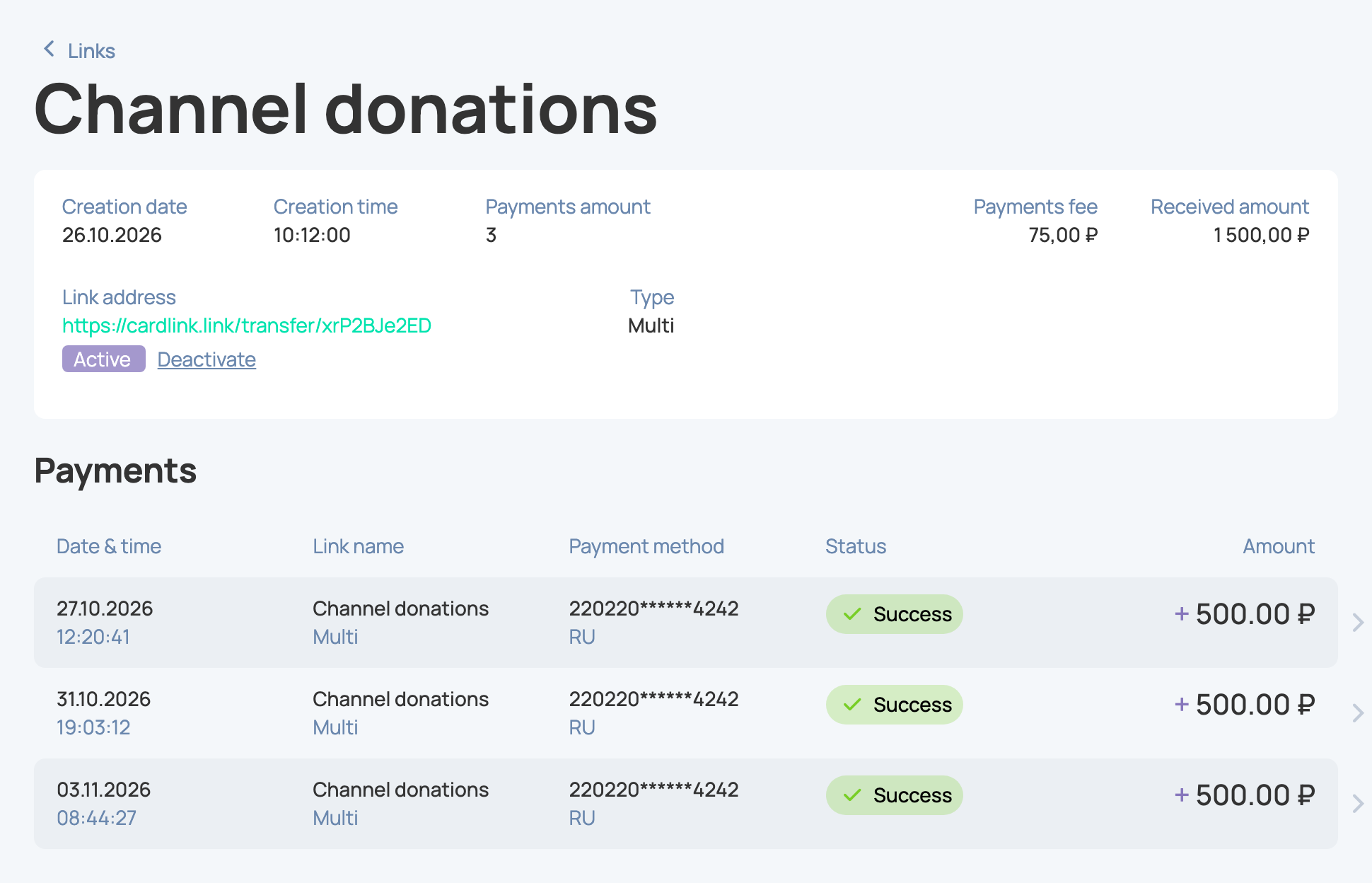
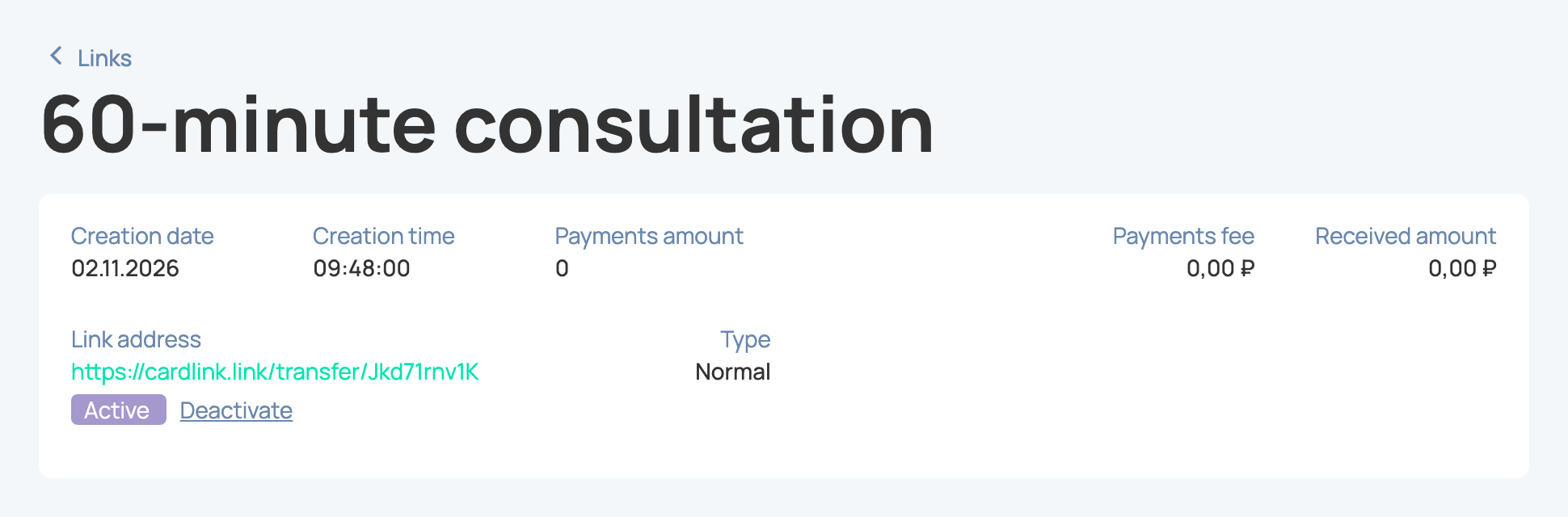
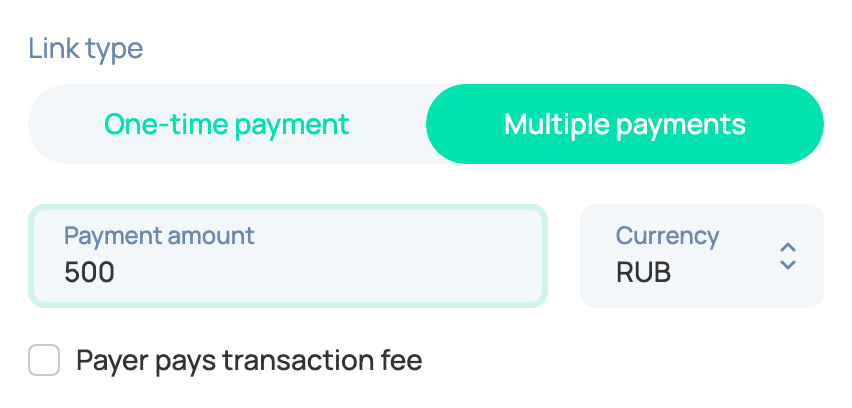
- Choose the Link type. A One-time payment link accepts only one payment. With a Multiple payments link you can accept an unlimited number of payments, which is handy for fundraising and donations. Multiple payments links are available to verified accounts only.
- Enter the Payment amount and choose the Currency. If you check Payer pays transaction fee, the fee is added to the amount for your customer and you receive the exact sum you set. Otherwise, you receive the sum minus the fee.
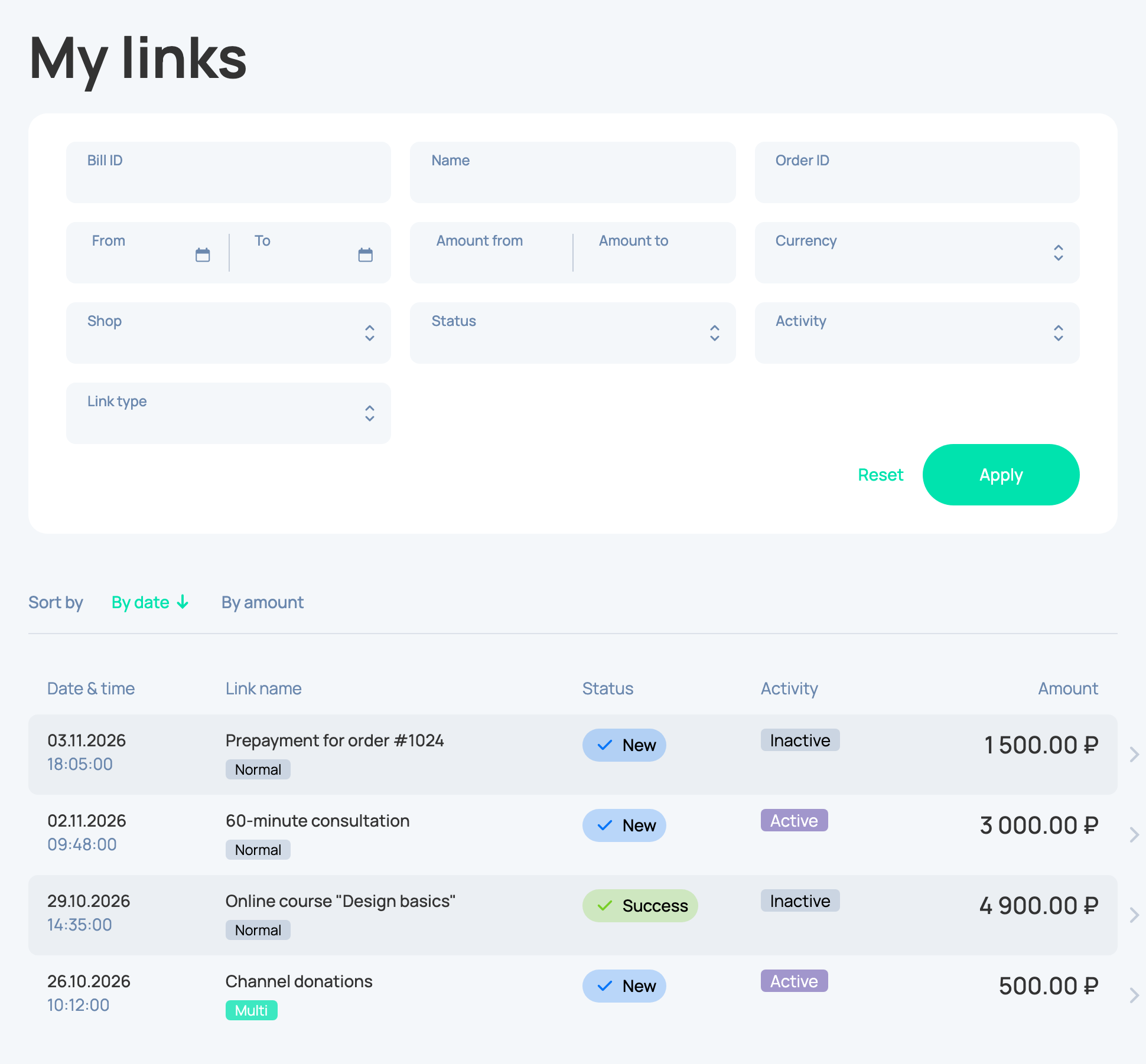
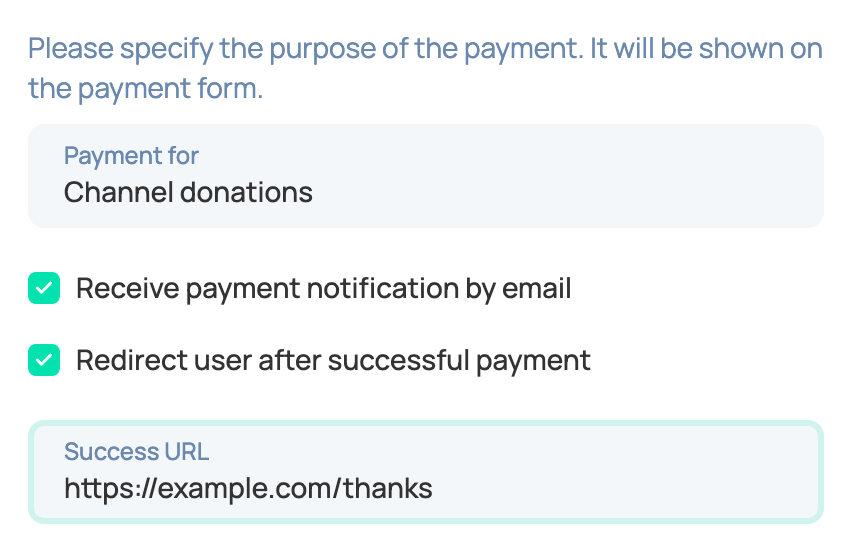
- In the Payment for field, describe what you accept the payment for. Your customer sees this text on the payment form, and you see it in My links, so the link is easy to find later.
- To get an email after each payment, check Receive payment notification by email.
- If your customer should be sent to your page after a successful payment, check Redirect user after successful payment and paste the address into the Success URL field. It's useful if you sell courses, PDF documents or archives stored online, for example on Google Drive.
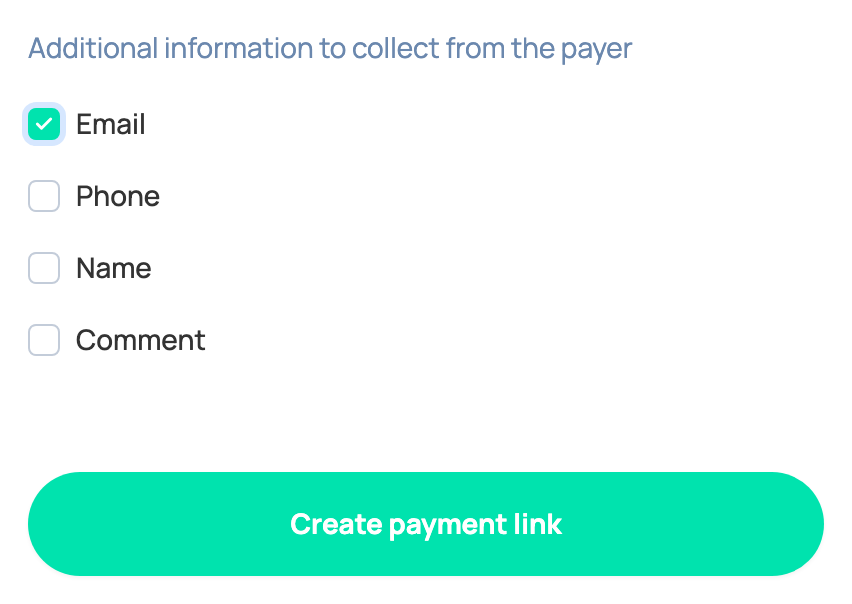
- In the Additional information to collect from the payer block, choose what your customer fills in before paying: Email, Phone, Name, Comment. Then click Create payment link.
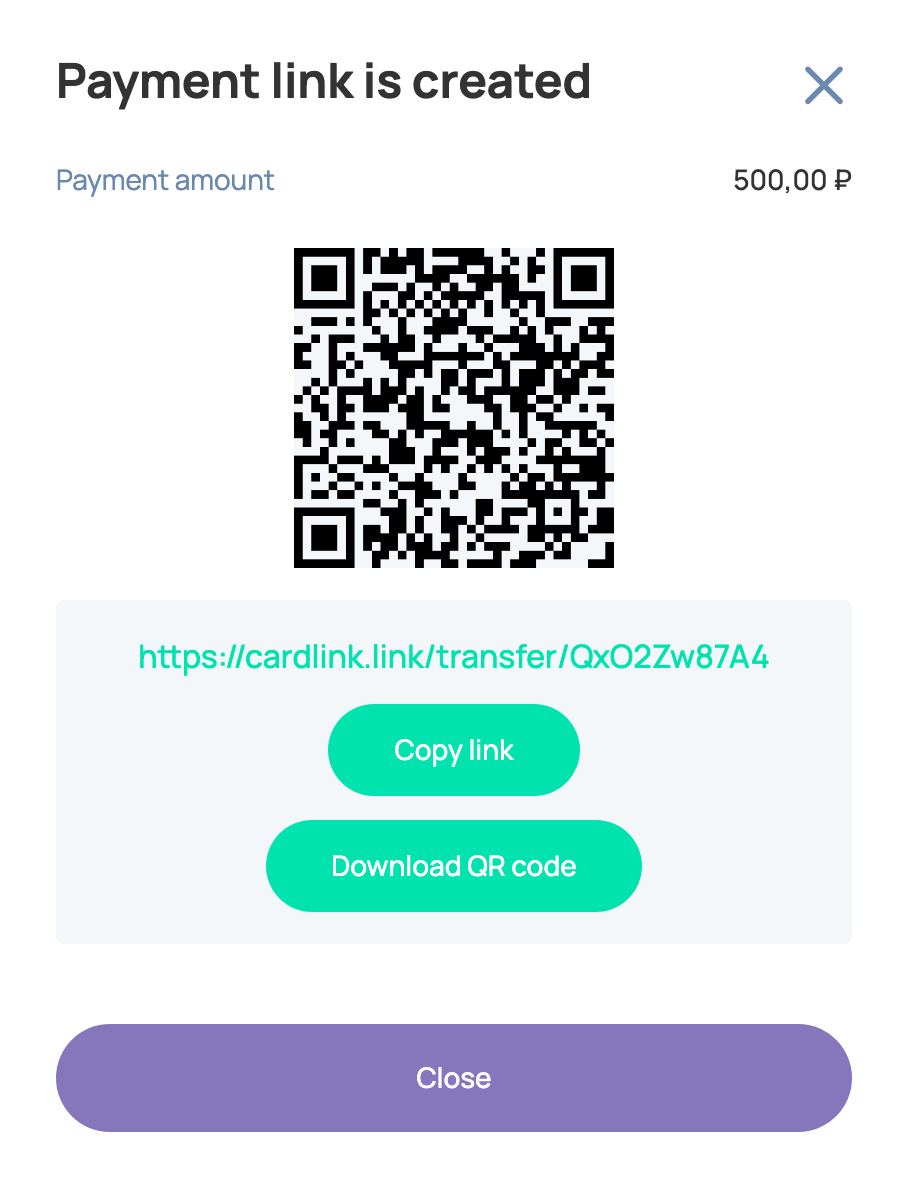
- The payment link is created. Click Copy link or Download QR code to share the link via social media or messengers, or show the QR code to your customer in person.
- After a successful payment, the funds are credited to your account balance.